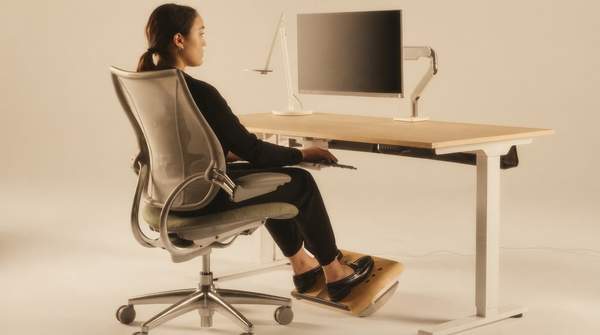
You can build a comfortable, low-strain home office without buying specialized equipment. The core principles are simple: support your lower back, keep the top of your monitor at or slightly below eye level, hold your elbows at roughly a 90-degree angle, and keep your wrists straight while typing. Health and safety guidance from the Mayo Clinic, OSHA, and federal workplace ergonomics programs converges on these same fundamentals. This guide walks you through each component—chair, monitor, keyboard, and workspace habits—so you can compare your current setup against measurable standards and make targeted fixes.
Step-by-Step Ergonomic Self-Assessment Checklist: Your Chair and Seating Posture
Start from the ground up. Your feet should rest flat on the floor, and your thighs should sit roughly parallel to the ground, which OSHA's computer workstation guidance identifies as part of proper spinal alignment. If your feet dangle, lower the chair or use a footrest.
Next, check the seat and backrest. A checklist from the CDC's National Institute for Occupational Safety and Health asks whether your chair has a padded seat with a rounded front edge, an adjustable backrest, adjustable armrests, and lumbar support. The reasoning is straightforward: without support for the natural curve of your spine, unnecessary strain lands on your lower back, producing muscle fatigue and pain, as furniture-maker Herman Miller's setup guide explains.
Finally, set your armrests so your shoulders stay relaxed and your elbows bend at about 90 degrees, close to your body. A chair with casters and a swivel base also helps, because it reduces strain when you reach for supplies or pivot between tasks.
Optimizing Your Monitor Placement for Eye and Neck Comfort
Your monitor position drives your neck posture, and it is one of the most common points of failure in home offices. Two measurements matter: height and distance.
For height, position the top of the screen at or just below eye level. OSHA describes the goal as a head and neck that stay balanced and in line with your torso. If your screen sits too low—a frequent problem with laptops—you will crane your neck downward for hours. Inspired Closets' ergonomic design guidance suggests using a stand or adjustable arm to raise a screen that falls short of the right height.
For distance, Contour Design's ergonomic desk setup guide recommends placing your monitor 20 to 26 inches from your eyes, close to an arm's length. The purpose is twofold: reducing neck strain and limiting eye fatigue. If you find yourself leaning forward to read text, the screen is too far away; if you feel your eyes working hard to take in the whole display, it may be too close.
Laptop users face a built-in conflict: a screen at eye level pushes the keyboard too high, and a keyboard at elbow height drops the screen too low. The NIH's workstation self-assessment checklist addresses this directly, recommending a full-sized external keyboard and mouse plus a docking station with a full-sized monitor or a laptop stand for prolonged use.
Keyboard and Mouse: Achieving Neutral Wrist and Arm Posture
With your chair and monitor set, turn to your typing surface. Your keyboard and mouse should sit at about elbow height, so your upper arms hang naturally and your elbows bend at roughly 90 degrees. This arm position, which appears across OSHA, NIOSH, and Inspired Closets guidance, reduces strain on both shoulders and wrists.
Keep the keyboard directly in front of you, and keep your wrists straight, flat, and in line with your forearms while typing. Contour Design frames this as the key to avoiding repetitive strain injuries. Bending your wrists up or down for extended periods puts pressure on the structures in your wrist, so avoid resting your palms on a hard edge while you type.
Place the mouse right beside the keyboard, within easy reach, so you don't have to stretch your arm sideways repeatedly. OSHA's guidance calls for adequate room for both keyboard and mouse on the work surface. If your desk is shallow or crowded, clearing space for the mouse is often a bigger win than any new peripheral.
Your Ergonomic Home Office Self-Assessment Checklist
Work through this checklist in order, answering Yes or No for each item. Every "No" marks a specific adjustment you can make today. The sequence moves from your chair upward, because each layer builds on the one below it.
| Component | Ergonomic Standard | If You Answered "No" |
|---|---|---|
| Chair height | Feet flat on the floor | Lower the chair or add a footrest |
| Backrest | Supports the natural curve of your lower back | Adjust the backrest or add lumbar support |
| Armrests | Elbows rest at about 90 degrees, close to the body, shoulders relaxed | Raise, lower, or remove the armrests |
| Monitor height | Top of screen at or just below eye level | Use a stand, riser, or adjustable arm |
| Monitor distance | Roughly 20–26 inches (about an arm's length) from your eyes | Move the monitor closer or farther on the desk |
| Keyboard | Directly in front of you, at elbow height, wrists straight and in line with forearms | Raise or lower the keyboard surface; keep wrists neutral |
| Mouse | Immediately beside the keyboard, within easy reach | Clear desk space so no reaching is needed |
| Workspace | Frequently used items within easy reach | Rearrange storage to cut stretching and twisting |
Two structural checks from the NIOSH checklist round out the assessment: confirm that your keyboard surface height is adjustable and that the keyboard tilts, and confirm the keyboard is detachable from the screen if you work on a notebook computer. Also check that screen glare is avoided and that your monitor offers brightness and contrast controls you can tune to your room's lighting.
Beyond the Setup: Healthy Habits for a Productive Workspace
A perfect static posture still works against you if you never move. Contour Design's guide is blunt on this point: set a reminder to stand and stretch every 45 to 60 minutes, because even a flawless ergonomic setup cannot replace regular movement. Their desk setup affects your body for six to ten hours a day, so small habits compound.
Organization supports ergonomics too. Under-desk clutter crowds your legs out of the neutral position, and a messy surface forces reaching and twisting. Inspired Closets recommends shelving and cabinets that keep essentials within arm's reach, plus built-in filing to cut paper clutter—though any storage that puts your most-used items close at hand achieves the same result without custom cabinetry.
One more habit from the NIH checklist: if you type while talking on the phone, use a headset or speakerphone rather than pinning a handset between your ear and shoulder.
Achieving Lasting Comfort and Productivity
Regularly review and adjust your home office setup and work habits to maintain ergonomic alignment and prevent discomfort. Your body changes, your tasks change, and equipment shifts over time, so re-run the checklist above every few months rather than treating it as a one-time fix. The measurable indicator of success is a reduced incidence of neck, back, or wrist pain, along with improved focus during work sessions. Contour Design notes that small adjustments—clearing under-desk clutter, adding lumbar support, repositioning the mouse—can deliver noticeable relief within days, so you should expect early feedback from your own body. This guide covers standard computer-based desk work and general prevention; if you have an existing injury or chronic pain, see a qualified clinician rather than self-treating, and note that no specific furniture brands or models are recommended here.